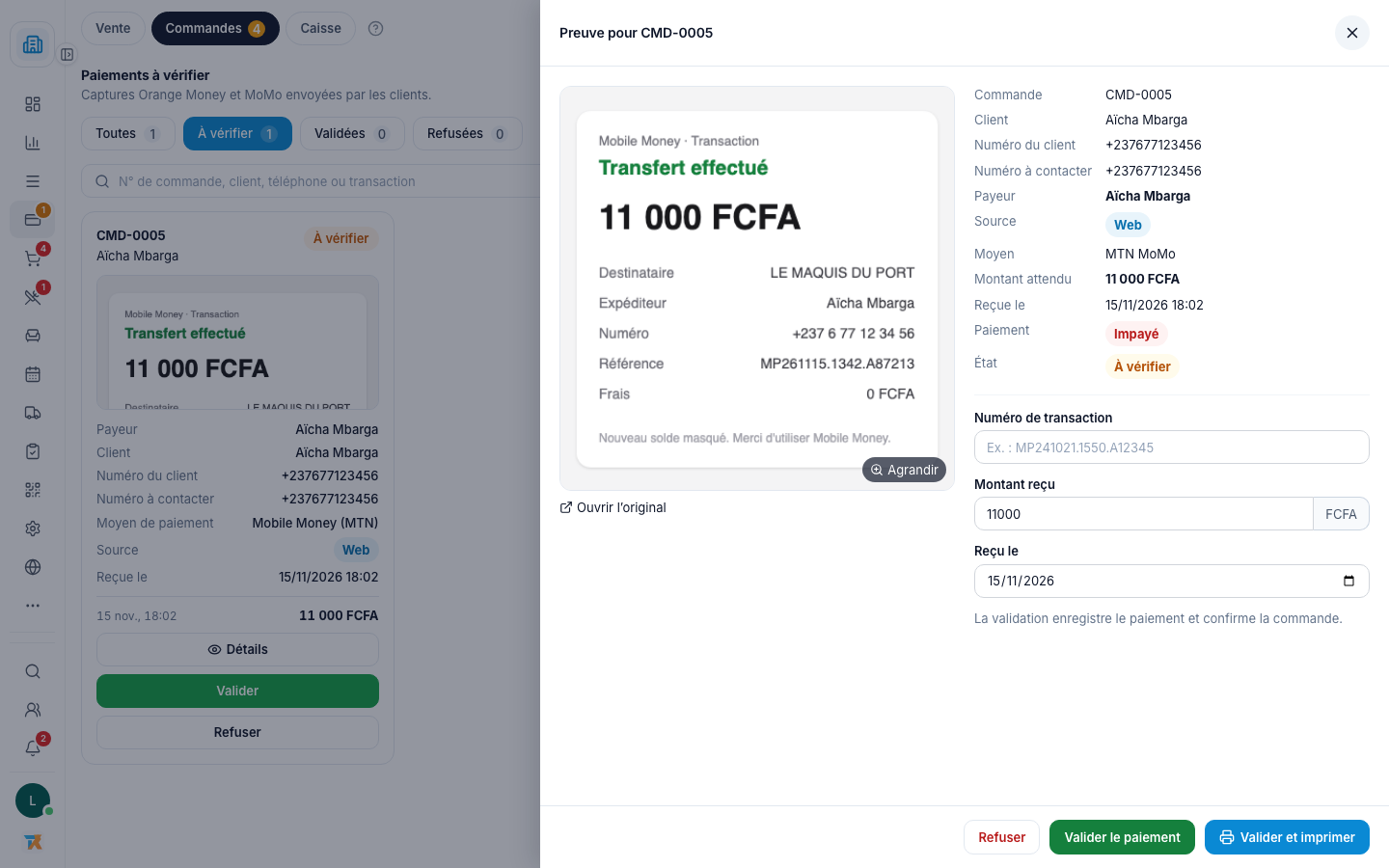
The To verify tab
When a customer pays online by mobile money, they send a proof (screenshot or transaction reference). The order carries the “Payment to verify” badge and appears in the Cash desk’s “To verify” tab, with the number of pending proofs.
Validate or refuse the proof
The “To verify” tab lists proofs as cards or a list, with state badges. A pending proof offers “Details”, “Validate” and “Refuse”: each opens the “Proof for…” panel with the screenshot, amount and reference. From the Orders tab, an order’s “To verify” button opens its proof directly.
Compare the amount and reference with the payment actually received on your mobile money account.
- Open Cash desk, then the “To verify” tab.
- On the proof card, click “Details” or “Validate”.
- In the panel, check the screenshot, amount and reference.
- Click “Validate payment” (or “Validate and print”). If the order is already paid, the button becomes “Confirm verification”.
- To refuse: “Refuse”, give the reason, then “Confirm refusal”.